Shared hosting
Git deploy: publishing a site from a repository
The "WWW" -> "Git deploy" section publishes your site code from Git. It works in two modes:
- pull - the panel clones a remote repository (GitHub, GitLab, etc.) and deploys the code by button, webhook or schedule ("auto-deploy" of the latest commit);
- push - you push straight into a repository on the server, and every push triggers a deploy.
How to set up a deployment
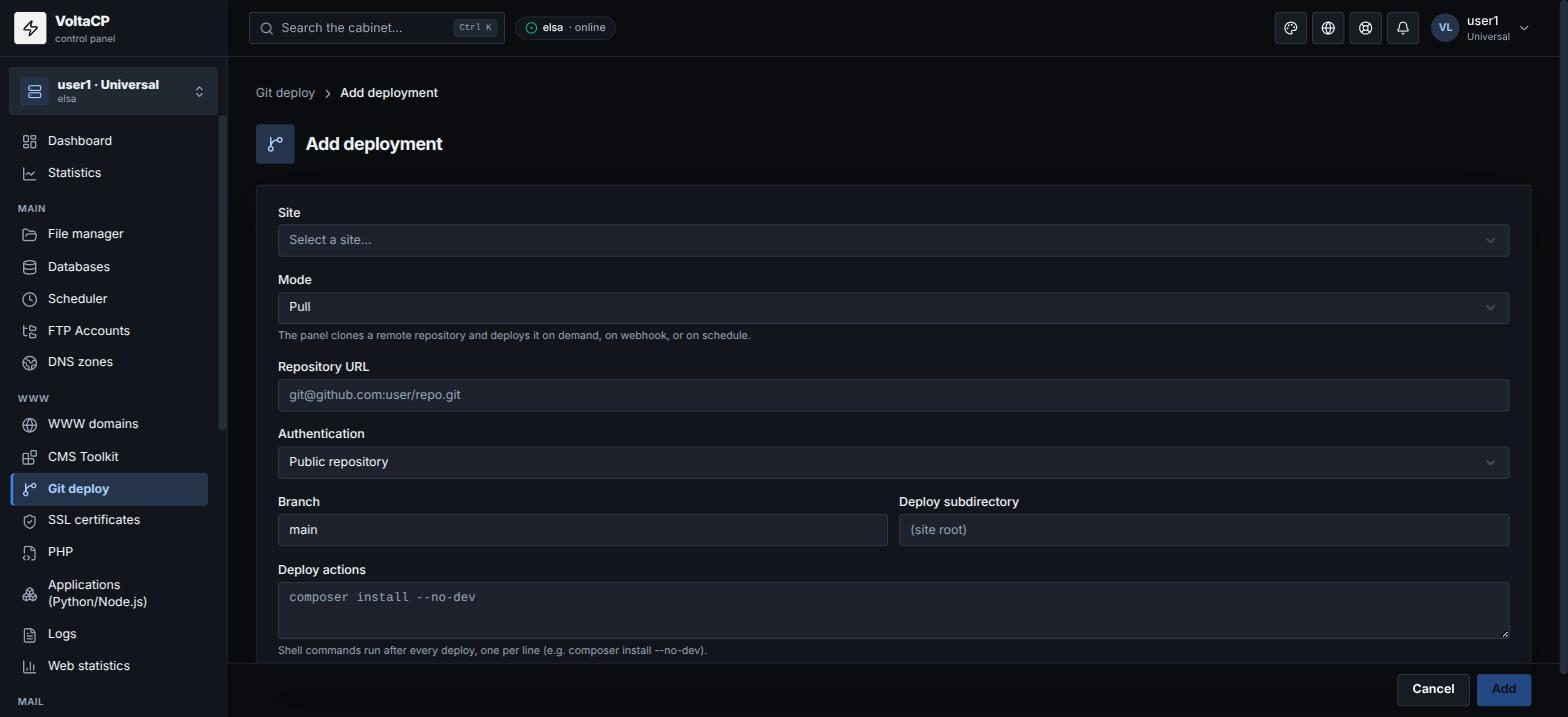
- Open "WWW" -> "Git deploy" and click "Add deployment".
- Choose the "Site" and the "Mode" ("Pull" or "Push").
- For Pull, enter the "Repository URL", the "Branch" and the "Authentication": "Public repository", "Deploy key (generated)" or "HTTPS token".
- If needed, set the "Deploy subdirectory" (empty = site root) and "Deploy actions" - commands to run after each deploy, one per line (for example
composer install --no-dev). - Save. After creation the panel shows the "Deploy key" (add it to your repository), the "Webhook URL" and the "Webhook secret" (shown only once) for automatic deploys on push to GitHub/GitLab.
How to publish changes (Pull)
In Pull mode, you can publish changes in three ways:
- Manually: click "Deploy now". The latest commit is deployed.
- Automatically on push: add the "Webhook URL" and "Webhook secret" to the repository webhook settings on GitHub/GitLab.
- On a schedule: in the deployment card ("Manage"), turn on "Scheduled auto-pull".
To see the result of the last deploy, open the deployment card: "Last deploy log".
How to work in Push mode
- Add your public key in "Settings" -> "SSH access".
- Copy the "Push URL (git remote)" from the deployment card and add it to your local repository:
git remote add hosting <Push URL from the card>
git push hosting main