Shared hosting
How to enable the PHP version and extensions you need?
PHP versions from 5.3 to 8.5 are available. The version is chosen for each site separately. Settings and extensions are set for each version at the service level.
Change a site's PHP version
- Open "WWW" -> "WWW domains" -> site -> "PHP" tab.
- Choose the "PHP version for site".
- Click "Save version".
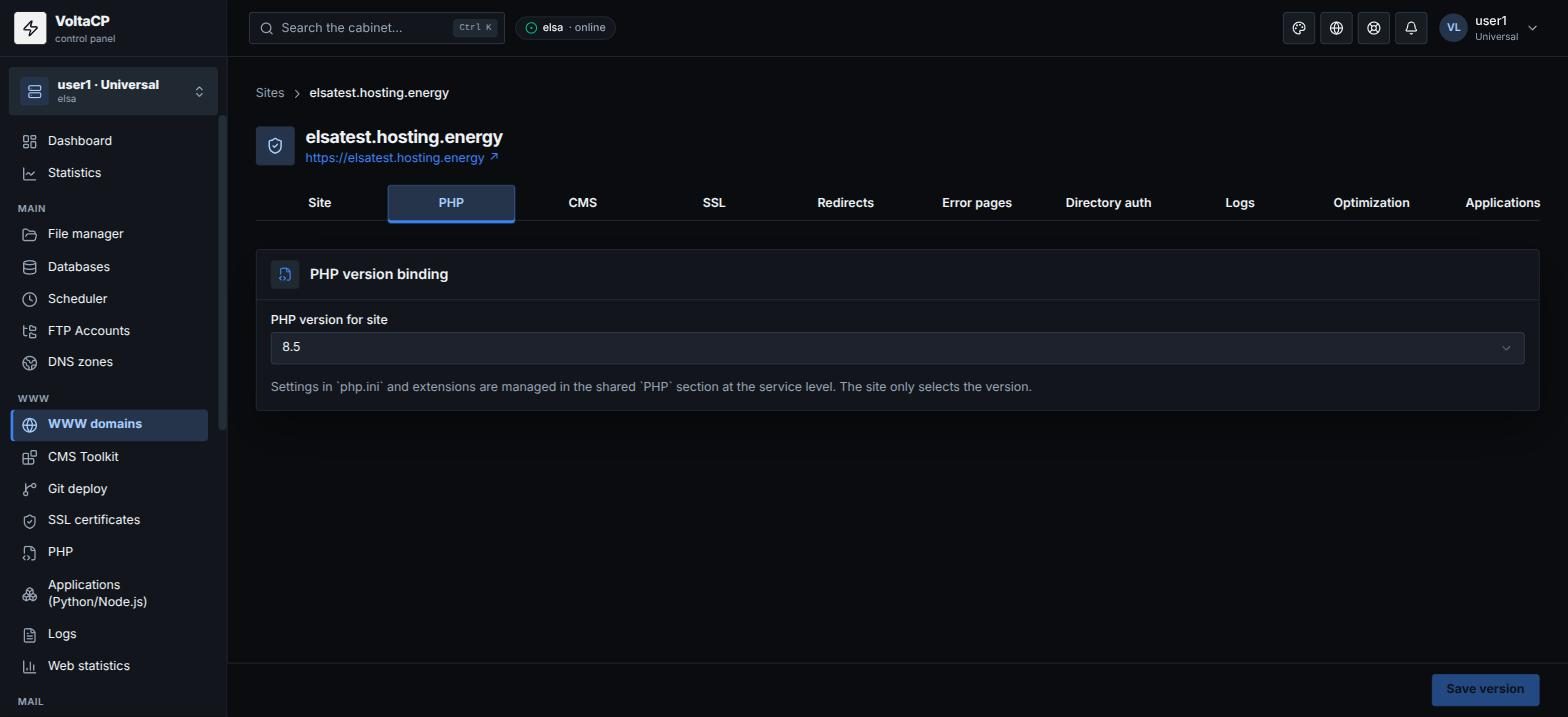
The version for new sites is set by the "Default version for new sites" mark in "WWW" -> "PHP".
Enable an extension
- Open "WWW" -> "PHP".
- Select the PHP version your site runs on.
- Go to the "Extensions" tab and enable the modules you need.
- Click "Save profile".
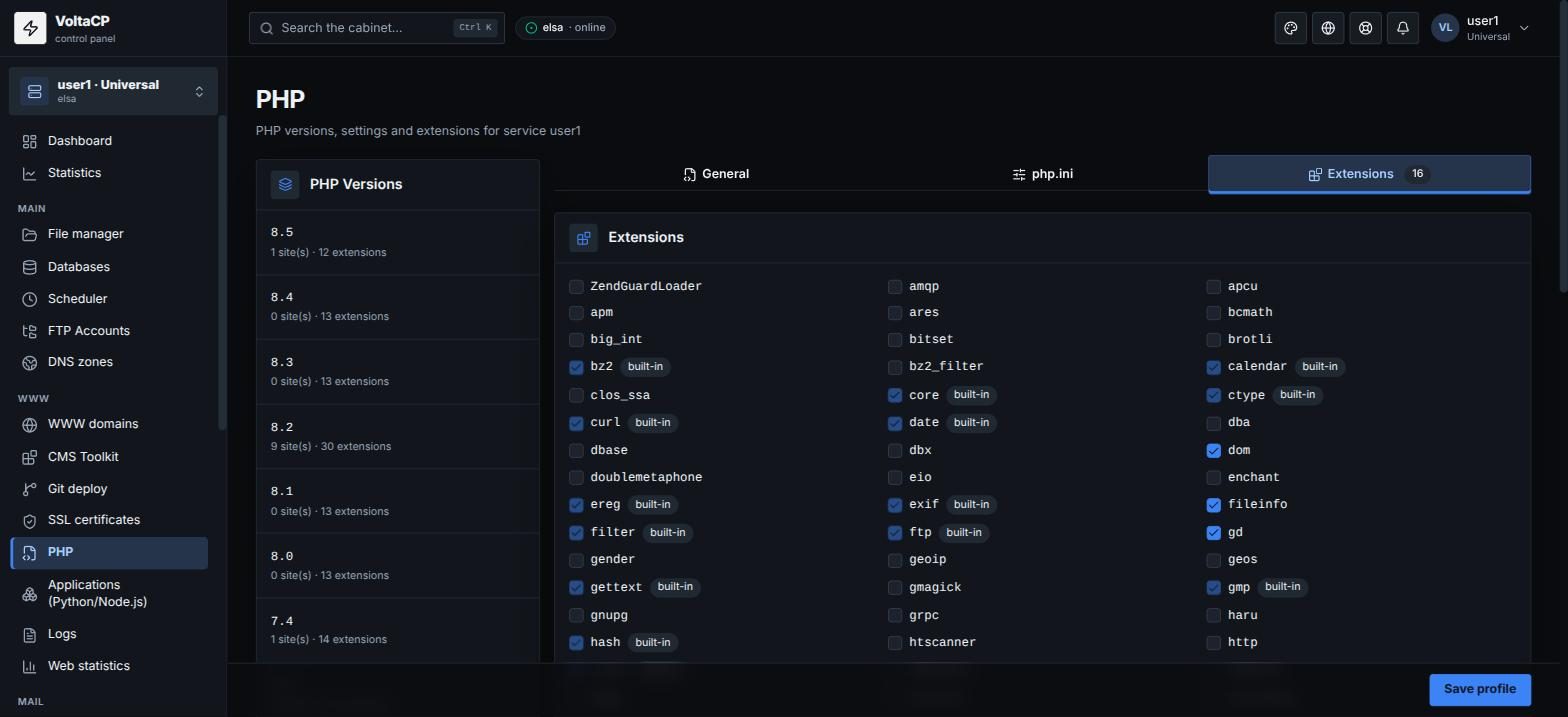
Extensions marked "built-in" are always enabled.
Common errors
If the site shows an error after you change the version or enable an extension, check this list:
Call to undefined function ...- the required extension is not enabled. Make sure you enable it in the same PHP version your site runs on.Allowed memory size ... exhausted- increase "Memory limit" on the "php.ini" tab (within your plan) or disable unneeded extensions.- "Out of memory" error - disable unneeded or unused PHP extensions that use RAM, or buy more RAM (see the article "How to buy more IPs, domains, databases, disk space, memory?").
- Errors are shown in the site's error log: "Logs" section, "Errors" tab.
Good to know
- The
imagewebp()function (WebP) belongs to thegdextension, notimagick. - The
mcrypt_*functions were removed in PHP 8; for old CMS choose PHP 7.x. - If you run
phpin cron or over SSH, note that this is the account's default version; for another version use the full path/opt/alt/phpXY/usr/bin/php(for example/opt/alt/php82/usr/bin/php).