Shared hosting
How to run a PHP script on a schedule (cron)
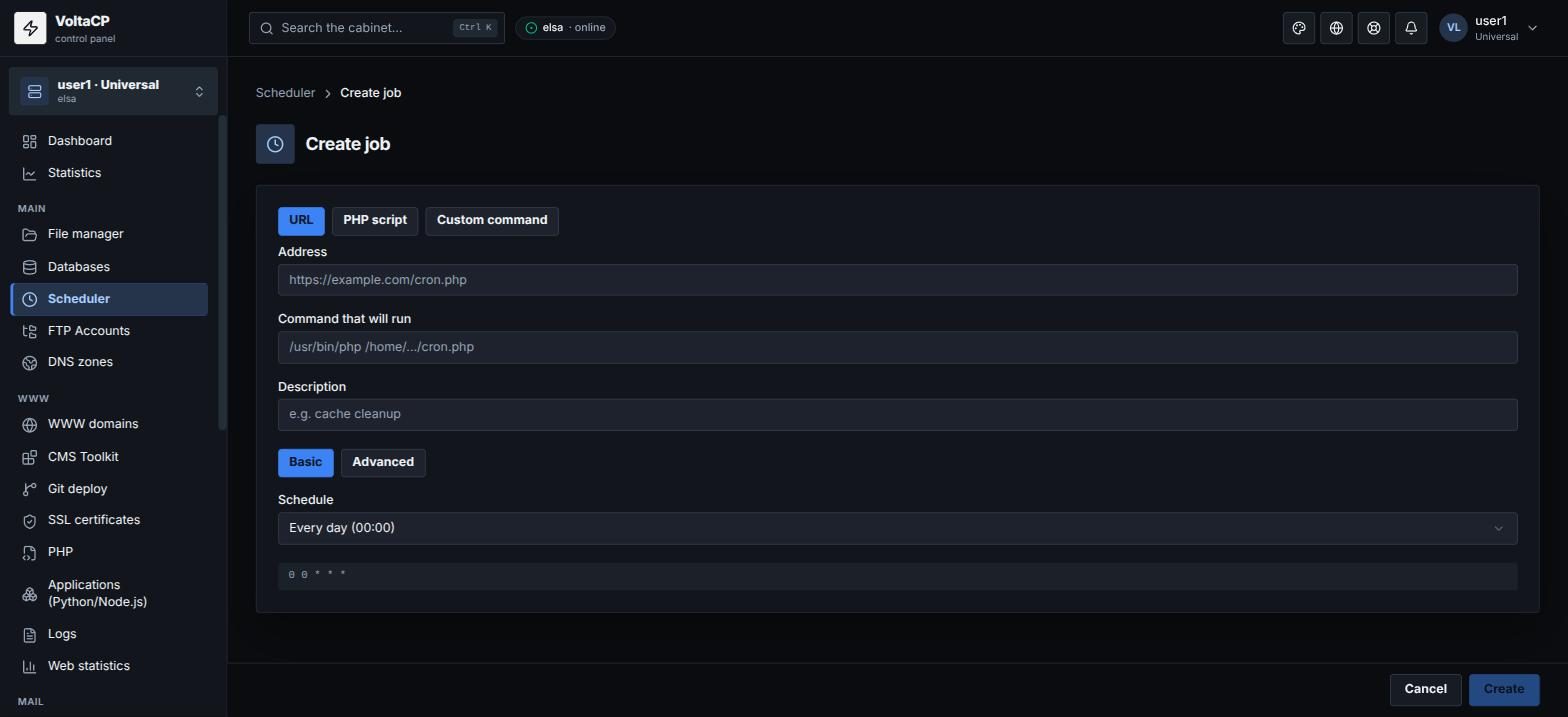
The scheduler (cron) runs a PHP script, a site URL or a command automatically on a schedule. To create a job:
- Open "Main" -> "Scheduler".
- Click "Create job".
-
Choose the command type:
- "URL" - open a site address, for example
https://example.com/cron.php?key=123; - "PHP script" - run a PHP file: choose the "PHP version" (the same as the site's), the "File" and, if needed, "Arguments";
- "Custom command" - any command.
The "Command that will run" field shows the final command.
- "URL" - open a site address, for example
- Set the "Schedule": a preset ("Every 5 minutes", "Every hour", "Every day (00:00)" etc.) or "Advanced" mode with cron fields.
- Optionally add a "Description" and save.
To test the job, click "Run now": it runs immediately.
Important
- A line like
php /path/file.php?param=1will not open a URL with parameters. To call a site address, use the "URL" type. - A bare
phpin a command is the account's default version, not the site's version. Choose the version explicitly.
How to get job output by email
- In the "Scheduler" section, click "Settings".
- In "Job output notifications", choose where to send job output and errors: to the account email, to another address, or nowhere.
The same place has "PATH" - the directories where cron looks for commands. Leave it empty to use the default value.