Shared hosting
Site logs: access and error log
Logs help you see who visited your site and why it shows errors.
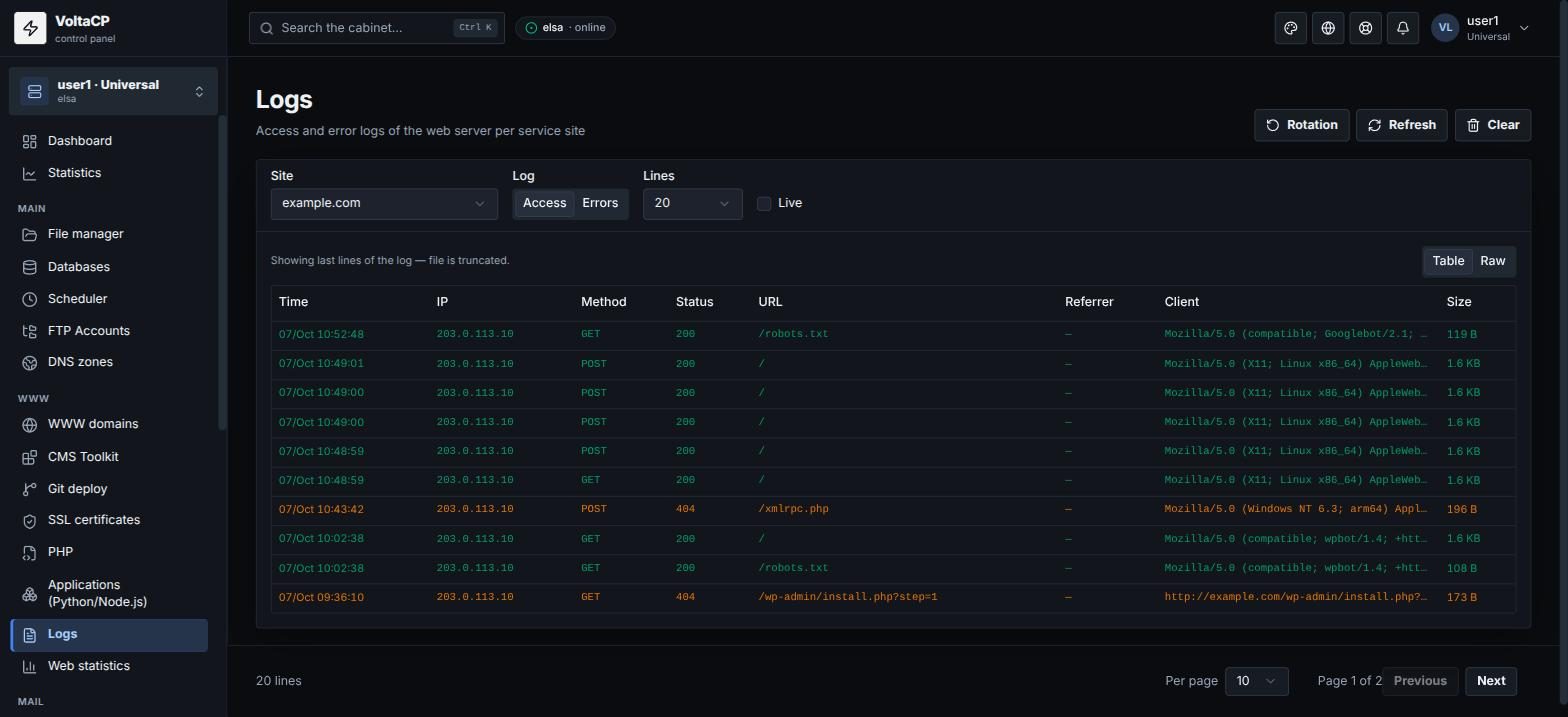
How to view logs
- Open "WWW" -> "Logs".
- Choose the "Site".
- Choose the log: "Access" (who requested what, visitor IPs) or "Errors" (web server and PHP errors).
"Live" mode shows new lines in real time.
Log files are also in the account's logs directory. You can download them via "File manager" or FTP/SFTP.
How to clear logs
Choose the log and click "Clear". Do not delete log files by hand.
Logs use the account's disk space: if space is running out, check the size of the logs.
How to set up rotation
In "Rotation", set "Roll at, MB" (at this size the log is archived automatically) and "Archives kept" (how many archives to keep).
The panel login log ("Log" -> "Logins") is a different log: it has no site visitors.