Shared hosting
Mail forwarding, aliases, filters and autoresponder
Forwarding, extra addresses, filters and the autoresponder are set up in the "Mail" section. Below is how to do each of them.
Forward mail from a mailbox to another address
- Open "Mail" -> "Mailboxes" and click the mailbox.
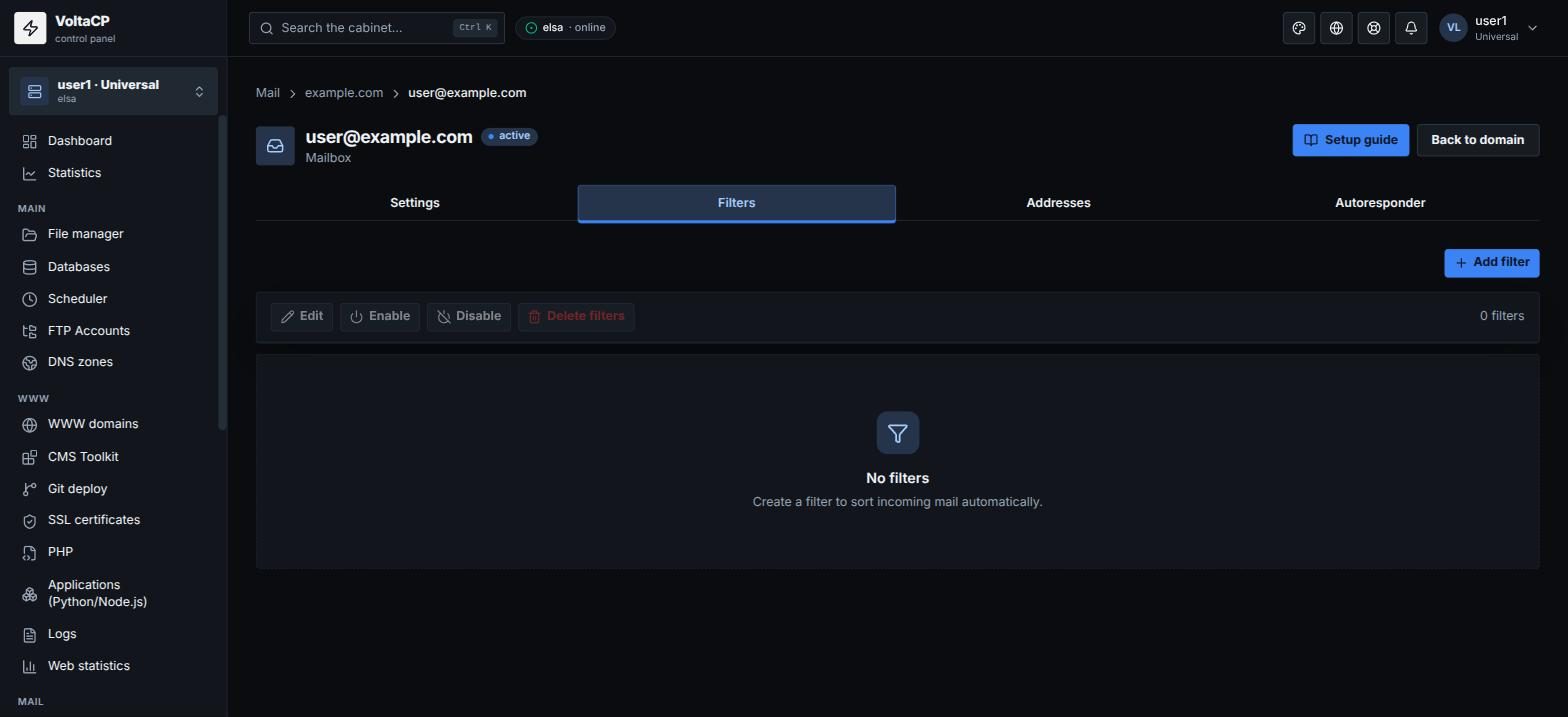
- Go to the "Filters" tab -> "Add filter".
- Enter a "Filter name". To forward all mail, add a condition that is always true (for example "Size" "greater than" 0).
- In "Actions (then)", choose "Redirect to" and enter the address. To keep a copy in the mailbox too, add one more action, "Keep".
- Save.
An address without a mailbox that forwards mail (alias)
- Open "Mail" -> "Mail domains" -> domain -> "Aliases" tab.
- Click "Create alias".
- Enter the "Alias name (before @)" and "Destination addresses" (one per line or comma-separated).
- Save.
An extra address for a mailbox
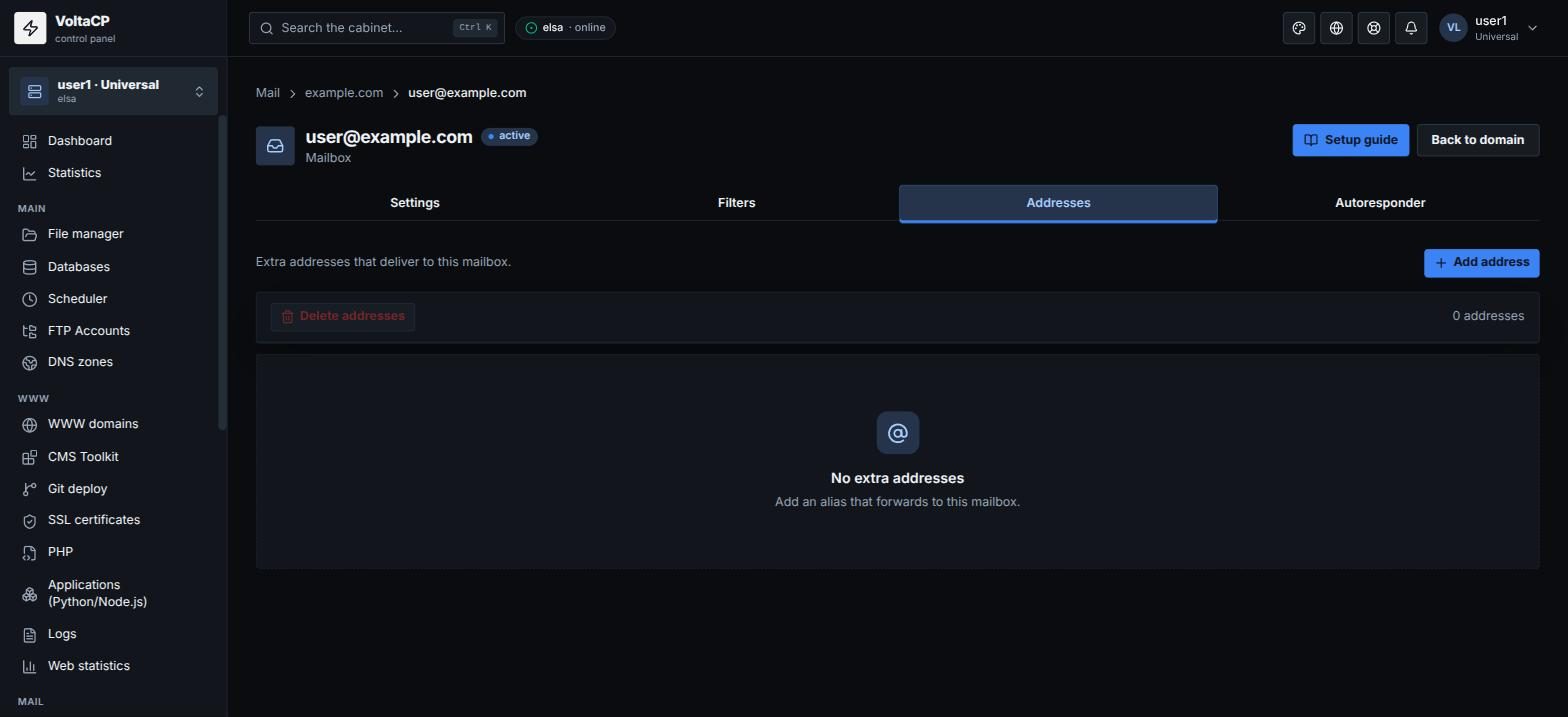
If you want mail sent to sales@domain to arrive in the existing mailbox info@domain:
- Open "Mail" -> "Mailboxes" and click the mailbox.
- Go to the "Addresses" tab -> "Add address".
How to set up a filter
- Open the mailbox, "Filters" tab -> "Add filter".
- Set conditions on "From", "To", "Cc", "Subject", "Header" or "Size", and choose whether to "match all" or "match any".
- Choose actions: "Move to folder", "Redirect to", "Delete", "Keep", "Stop processing" or "Mark as read".
- Save.
Autoresponder
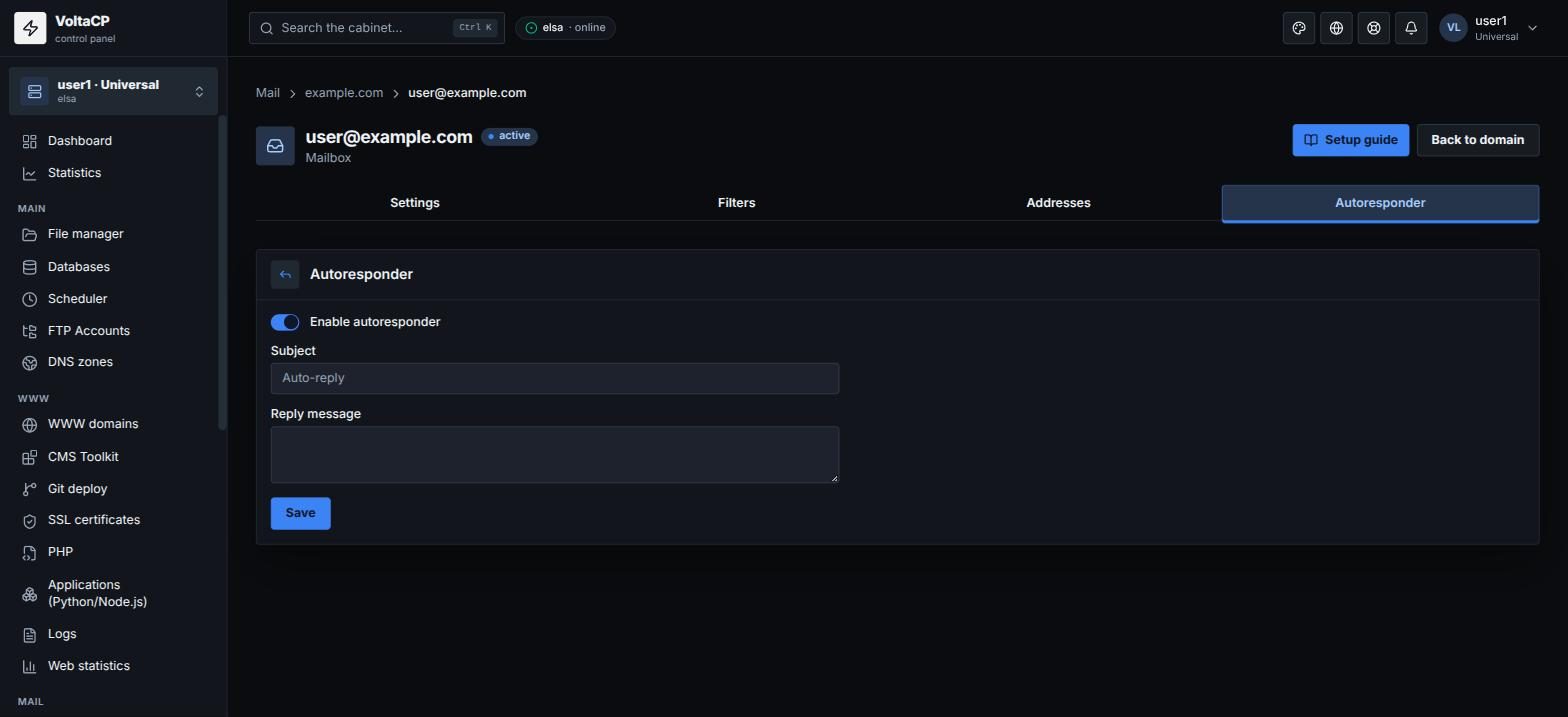
- Open the mailbox, "Autoresponder" tab.
- Turn on "Enable autoresponder".
- Enter the "Subject" and "Reply message" and save.
Mail to non-existent addresses (catch-all)
- Open the mail domain and click "Settings".
- In "Unknown addresses", choose:
- "Reject" (recommended) - the sender gets a non-delivery notice;
- "Forward" - all mail to non-existent addresses is forwarded to the address you enter. Note that this address will get a lot of spam.