Shared hosting
How to add a database
Below is how to create a MySQL database and a user for it, and what to check if the site cannot connect to the database.
How to create a database
- Open "Main" -> "Databases".
- Click "Create DB".
- Enter the "Database name" and "Encoding" (we recommend
utf8mb4). - Keep "Create a user with the same name" checked to get a database user right away.
- Click "Create". The user's password is shown only once, so save it.
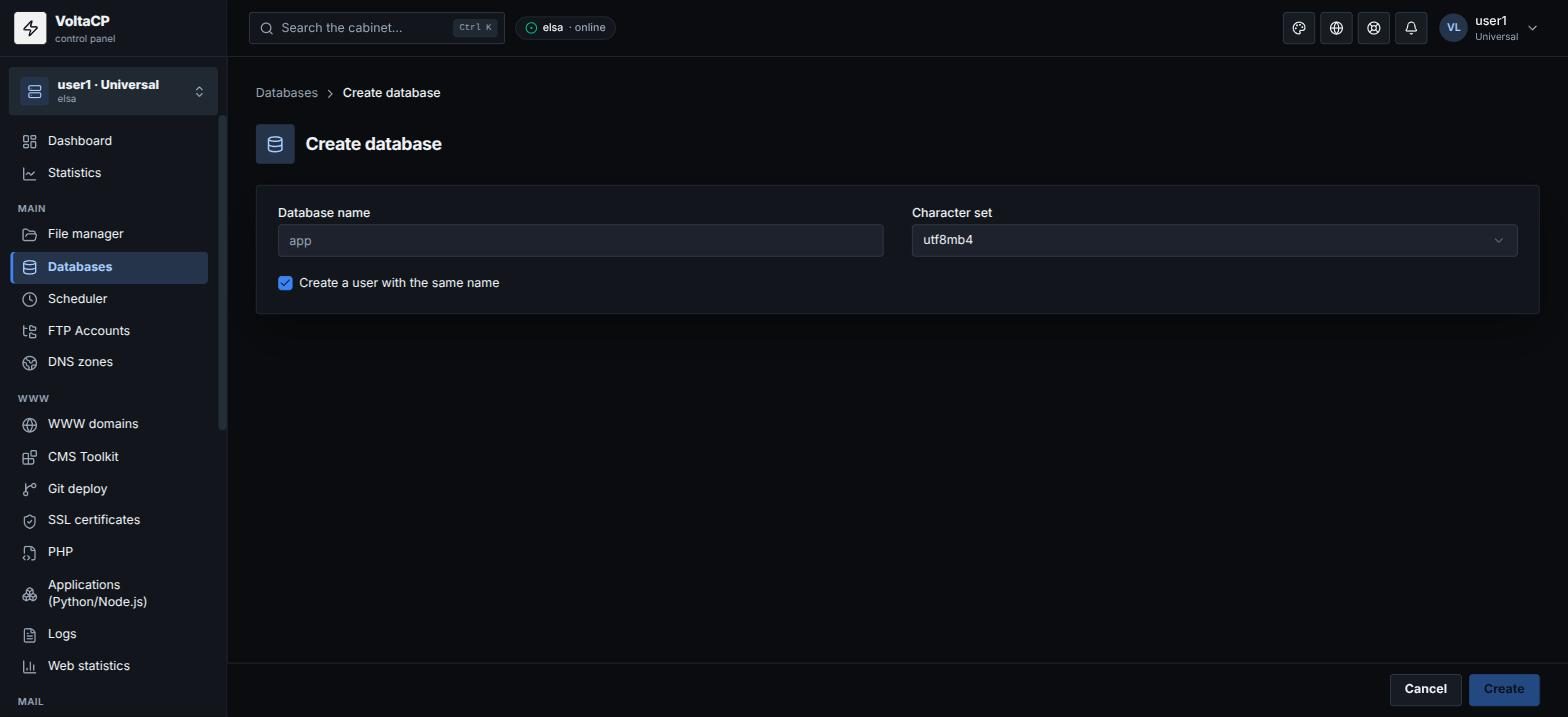
To connect from your site's scripts, use the host localhost, the database name, the user name and the user's password.
How to add another database user
- Open "Main" -> "Databases" and click the database in the list.
- Go to the "Users" section.
- Click "Create user" and choose the databases the user can access and the privileges.
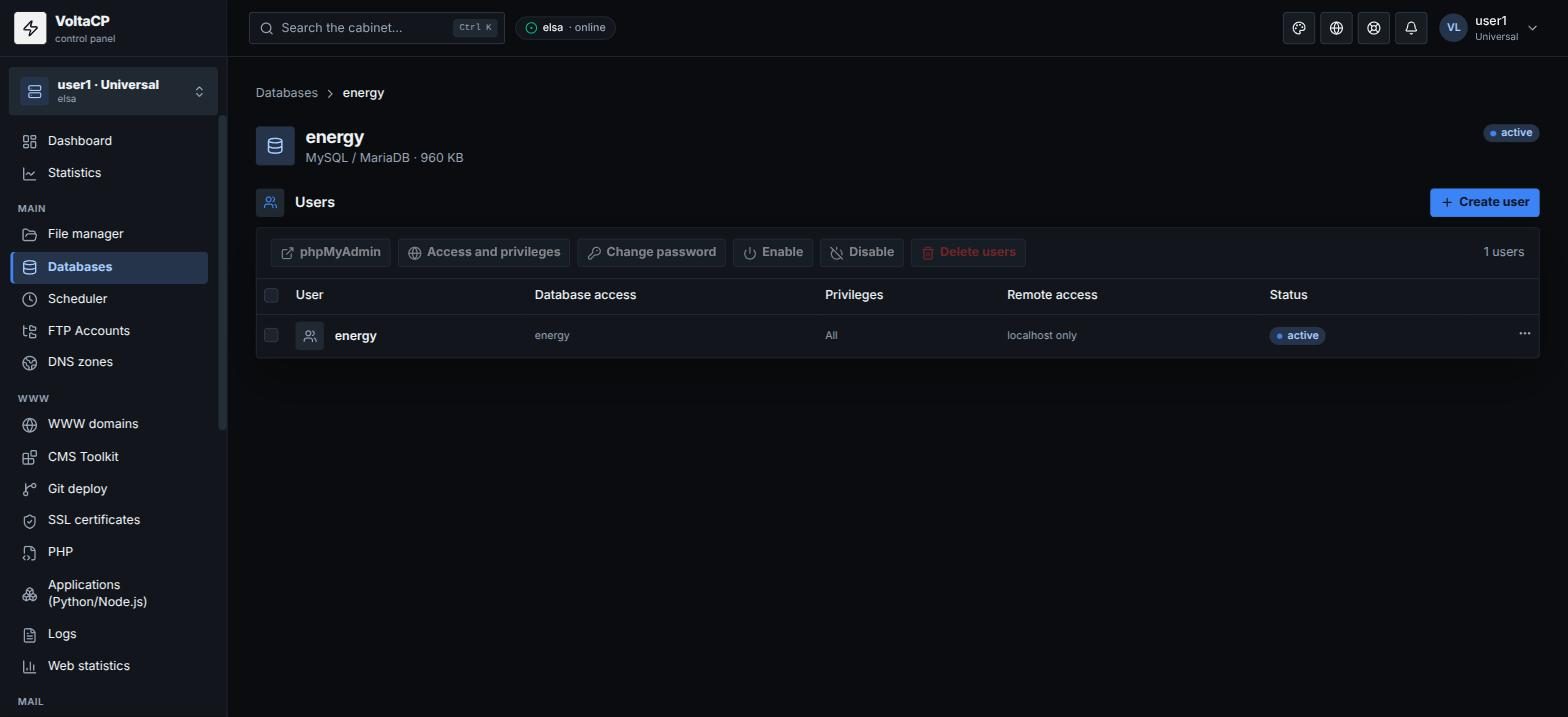
You can also change the user's password there ("Change password"). Privileges and database access are changed in the user's settings ("Access and privileges").
If you need to connect to the database remotely, set up the user's "Remote access" (see the article "How to connect to the MySQL server remotely?").
If the database does not connect
- Check the database name, user and password in the site config. If unsure, set a new password for the user.
- The MySQL host for sites on the hosting is
localhost. - If importing a large dump fails with
Got a packet bigger than max_allowed_packet, contact support.
Exporting and importing a database is described in the article "How to export/import a MySQL database?".