Shared hosting
How to add a site?
This article explains how to add a site in the control panel, change its settings and change its main domain.
Before you add a site:
- register the domain name with a registrar;
- order hosting in the billing panel;
- point the domain to the hosting (set our NS, see "How to connect a domain to hosting (our NS)").
How to add a site
- Log in to the control panel and open "WWW" -> "WWW domains".
- Click "Create site".
- Enter the "Domain", for example example.com, and the "PHP version" (for a static site, "No PHP (static site)").
- Check the other fields:
- "Document root" - leave it empty, the site files will be in the
www/<domain>directory; - "Aliases (additional domains)" - for example www.example.com;
- "IP addresses" - at least one IPv4 is required;
- "Redirect to HTTPS" - turn it on if you plan to use SSL;
- "Enable human-readable URL processing" - for WordPress, Laravel and other CMSs with "pretty" links;
- "Create a DNS zone with records" - leave it on if the domain will use our NS.
- "Document root" - leave it empty, the site files will be in the
- Click "Create site".
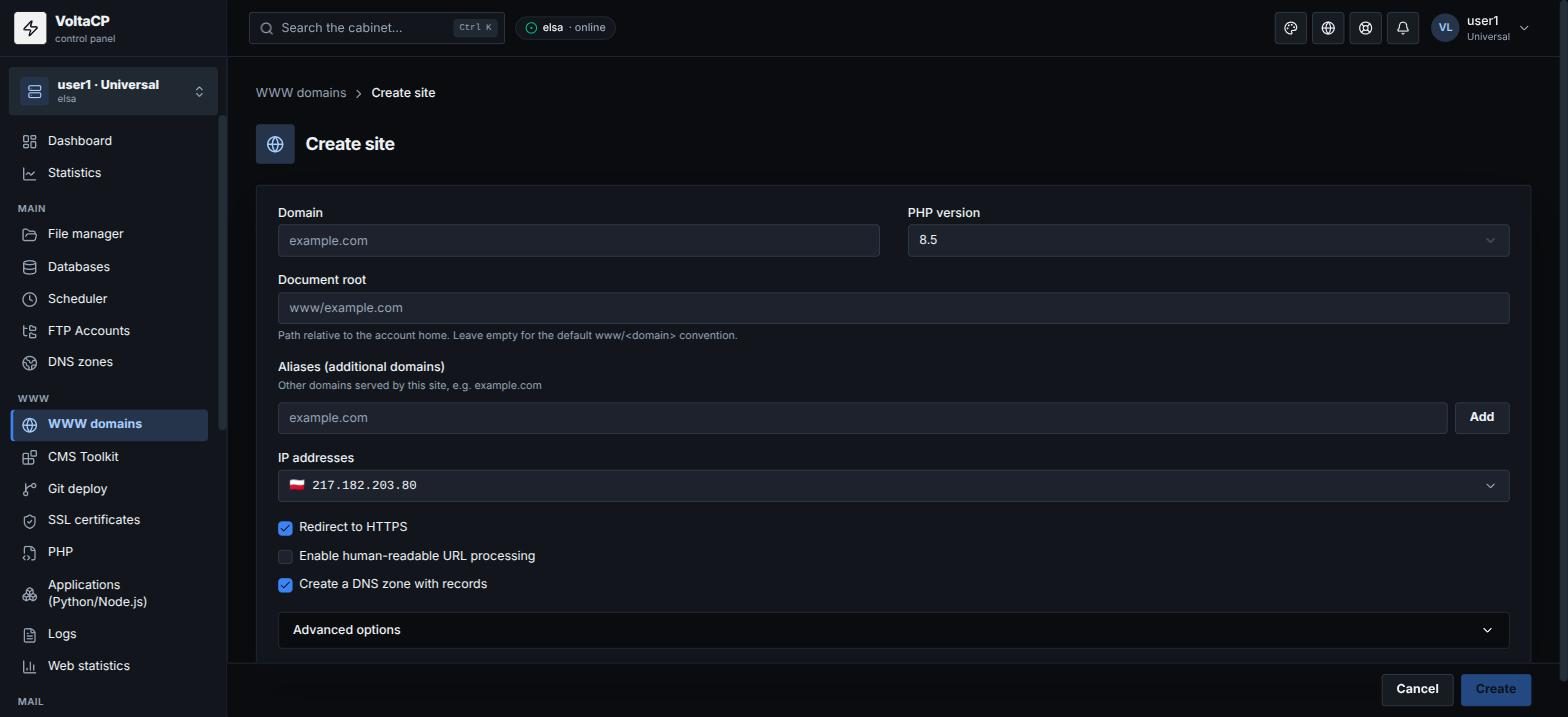
After that, upload the site files to the www/<domain> directory via "File manager", FTP or SFTP. Then issue an SSL certificate (see "How to get a free Let's Encrypt SSL certificate?").
How to change site settings
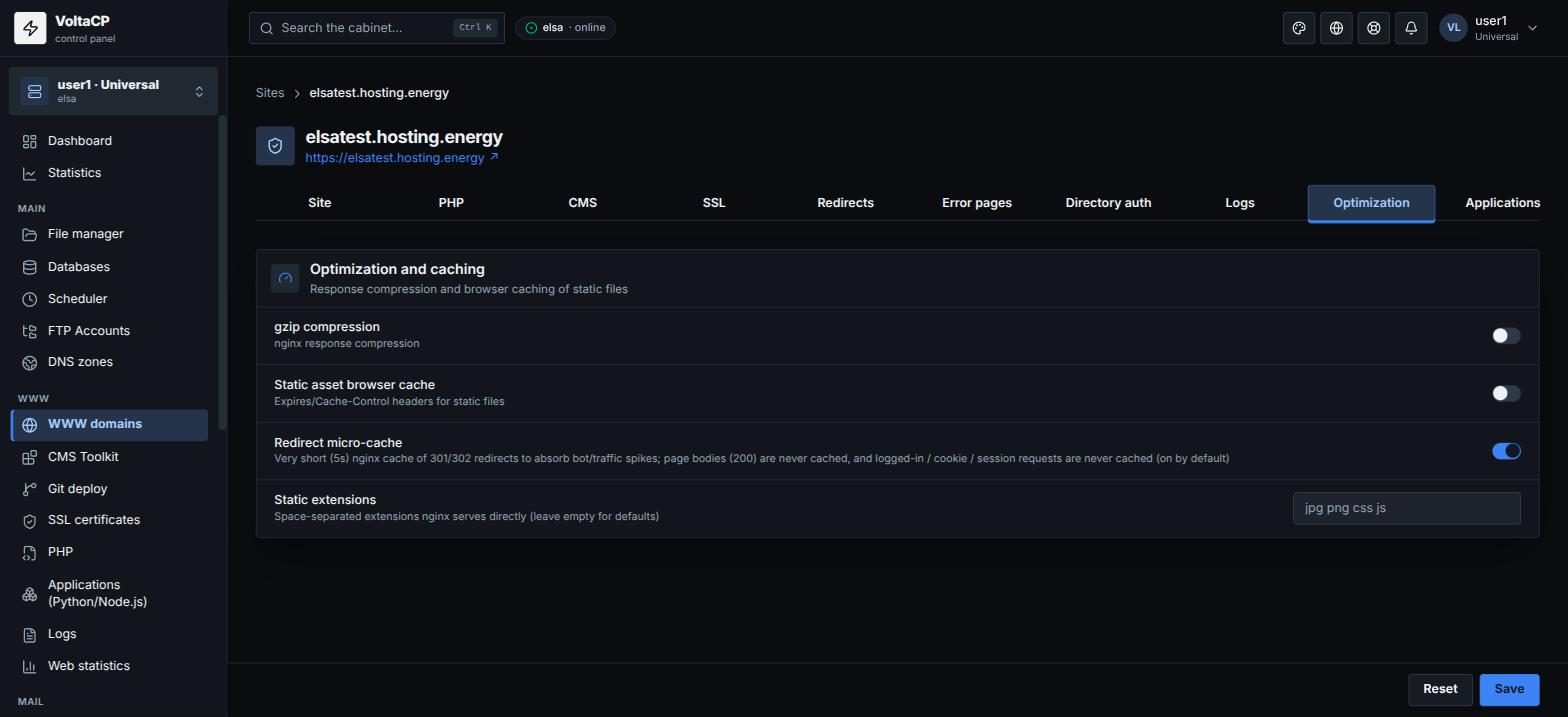
Click the site in the "WWW domains" list: aliases, PHP, SSL, compression, cache, redirects and other settings are there. More details: "Site (WWW domain) settings".
Recommendations
A few tips worth keeping in mind when you set up a new site:
- We recommend ordering a dedicated IP address (see "Dedicated IP address").
- You can also choose an IPv6 address: more and more internet services move to IPv6.
- Use an admin e-mail on the site's domain (for example admin@example.com), not on mail.ru, yandex.ru, etc.
- Compression and cache are set on the site's "Optimization" tab. For compression, we recommend medium values, around 5.
- Be sure to turn on caching of static files (the expires header): search engines require it, and the site loads faster.
How to change the main domain of a site
The site files are kept; only the domain they are attached to changes:
- Delete the old site in "WWW domains" without checking "Also delete site files".
- Rename the site directory in "File manager" to the new domain name (or enter the old directory in the "Document root" field when you create the site).
- Create a site with the new domain.
- Issue a new SSL certificate for it.
Important
- The panel creates the needed directories itself. Do not delete system directories of the account (
logs,mod-tmp, etc.): this can break your sites. - Do not delete site logs by hand: clear them in "Logs" (the "Clear" button) or set up rotation.