Shared hosting
How to install a CMS on our hosting?
You can install a CMS in two ways: in one click with CMS Toolkit or manually. Both options are described below, as well as how to adopt a WordPress that is already installed.
One-click install (CMS Toolkit)
- Create a site in "WWW" -> "WWW domains" (see "How to add a site?") and point the domain to the hosting.
- Open "WWW" -> "CMS Toolkit" and click "Install".
- Choose the CMS (WordPress, Joomla, Drupal, OpenCart or PrestaShop) and the "Site".
- If needed, enter a "Subdirectory" (for example
blogto install to https://site/blog); leave it empty to install to the site root. - For WordPress, fill in "Site title", "Admin username" and "Admin email".
- Click "Install".
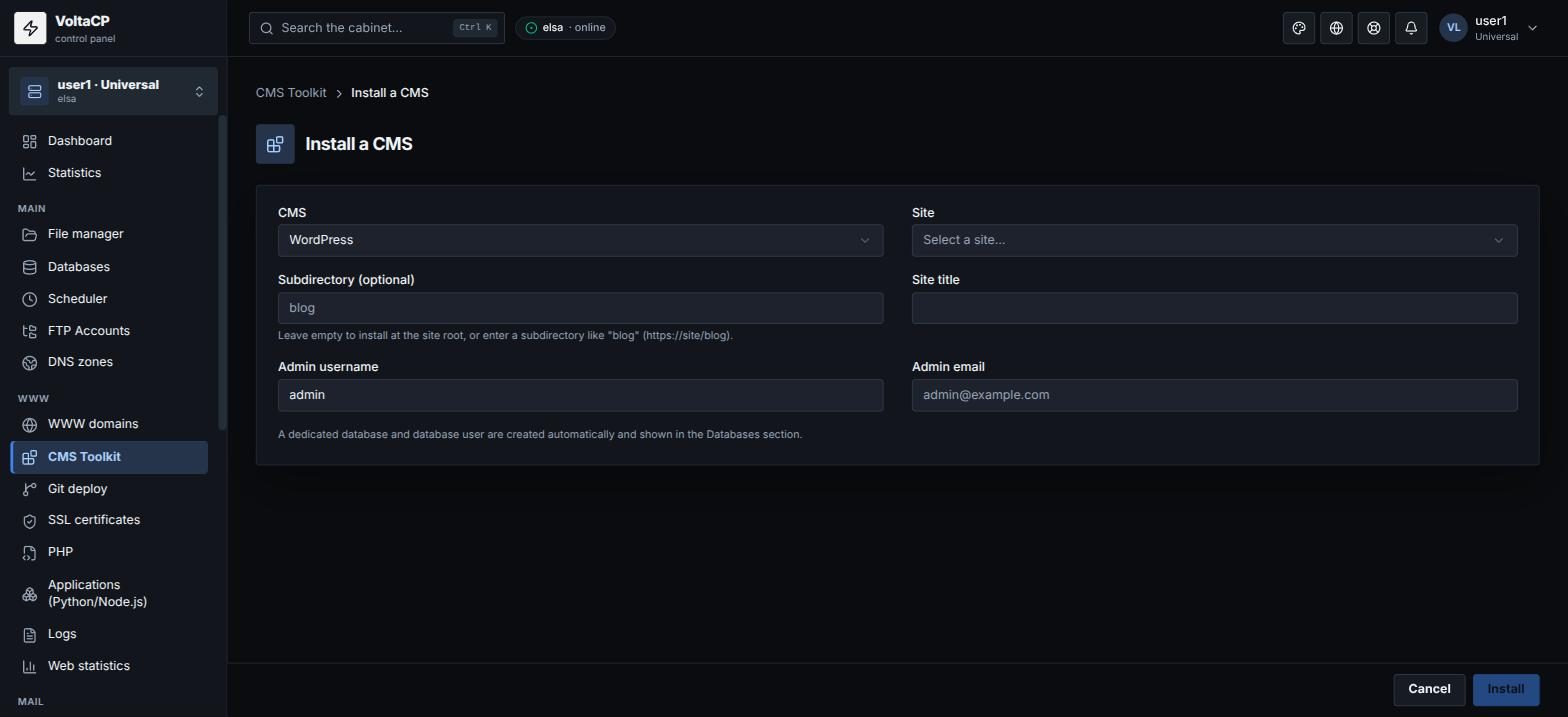
The database and the database user are created automatically. The admin password is shown only once: save it.
For WordPress, CMS Toolkit offers: login to wp-admin without a password ("Log in to wp-admin"), core updates, automatic updates, plugin and theme management, and "One-click hardening".
Manual install
- Create a site and point the domain to the hosting.
- Upload the CMS files to the
www/<domain>directory via FTP/SFTP or "File manager" (you can upload an archive and unpack it with the "Extract" button). - Create a database (see "How to add a database").
- Open the site in a browser and run the CMS installer. The MySQL host is
localhost.
If WordPress is already installed
To manage an existing WordPress from the panel:
- Open "CMS Toolkit" and click "Adopt existing".
- Choose the site and click "Detect".
- Click "Adopt".