CMS Toolkit: managing WordPress from the panel
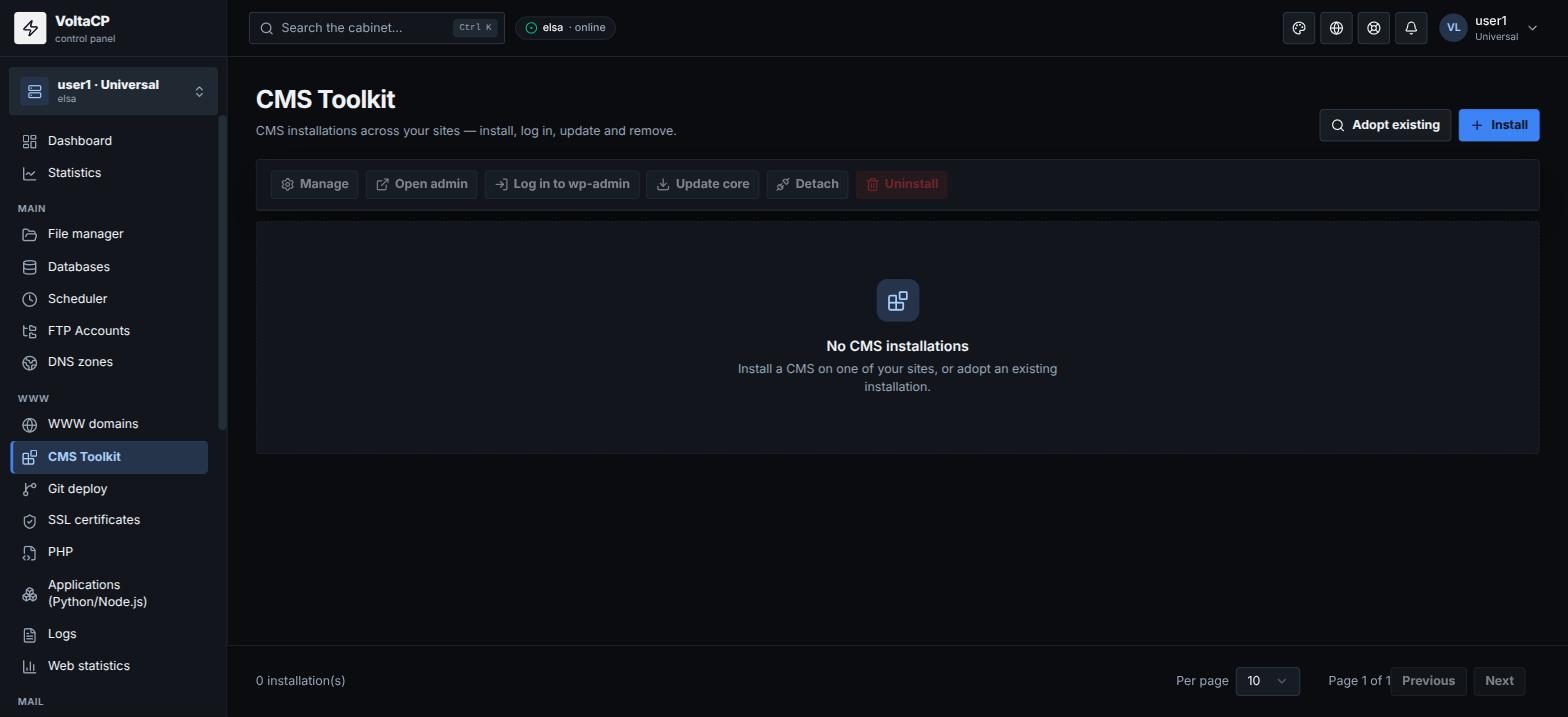
The "WWW" -> "CMS Toolkit" section shows the CMS installed on your sites. From here you can log in to the WordPress admin without a password, update the core and install plugins and themes without going to the site itself.
How to log in to the WordPress admin without a password
- Open "WWW" -> "CMS Toolkit".
- Next to the installation, click "Open admin" or "Log in to wp-admin".
The WordPress admin opens without asking for a password.
How to update WordPress
- Open "WWW" -> "CMS Toolkit".
- Next to the installation, click "Update core".
WordPress is updated to the latest version.
To update the core automatically, open the installation card ("Manage") and turn on "Automatic core updates". The core will then be updated daily. Automatic updates are off by default.
How to install a plugin or theme
- Open "WWW" -> "CMS Toolkit" and click "Manage" next to the installation.
- Go to the "Plugins" or "Themes" tab.
- Enter the slug from the wordpress.org directory (for example
wordpress-seo) and install it.
On the same tabs you can activate, deactivate, update and delete plugins and themes.
How to secure WordPress
In the installation card, click "One-click hardening". It disables the file editor in the admin and turns on background minor core updates.
How to add a WordPress installed manually or moved from another host
In the "CMS Toolkit" section, click "Adopt existing".
How to delete an installation
- Open "WWW" -> "CMS Toolkit".
- Next to the installation, click "Uninstall".
- To delete the data too, tick "Delete files" and/or "Delete database".
The site itself is kept.
To only remove the installation from CMS Toolkit without deleting anything, click "Detach".
Other CMS
Joomla, Drupal, OpenCart and PrestaShop have basic management: install, open admin, uninstall.